cwfile — a dual-panel file commander for macOS
v1.0

cwfile

A native macOS dual-panel file commander in the spirit of Total Commander and fman — two panels, function-key file operations, tabs, and a keyboard for everything.

Copy and move between panels with F5/F6, jump anywhere with the ⌘P Go to Anything palette (it learns your most-visited folders), preview any file with Space Quick Look, filter the list as you type, and open tabs per panel. Prefer modal keys? Turn on vim bindings in Settings.

Dual‑panel
Source and destination
always visible,
Tab to switch
Keyboard‑first
F-keys, ⌘P palette,
quick filter, tabs —
mouse optional
Native
AppKit app,
Quick Look built in,
Apple-Silicon ready
⤓  Download cwfile-1.0.dmg
macOS 14+ · Apple Silicon
0.9 MB · signed DMG installer · unverified-developer gatekeeper: right-click Open the first time
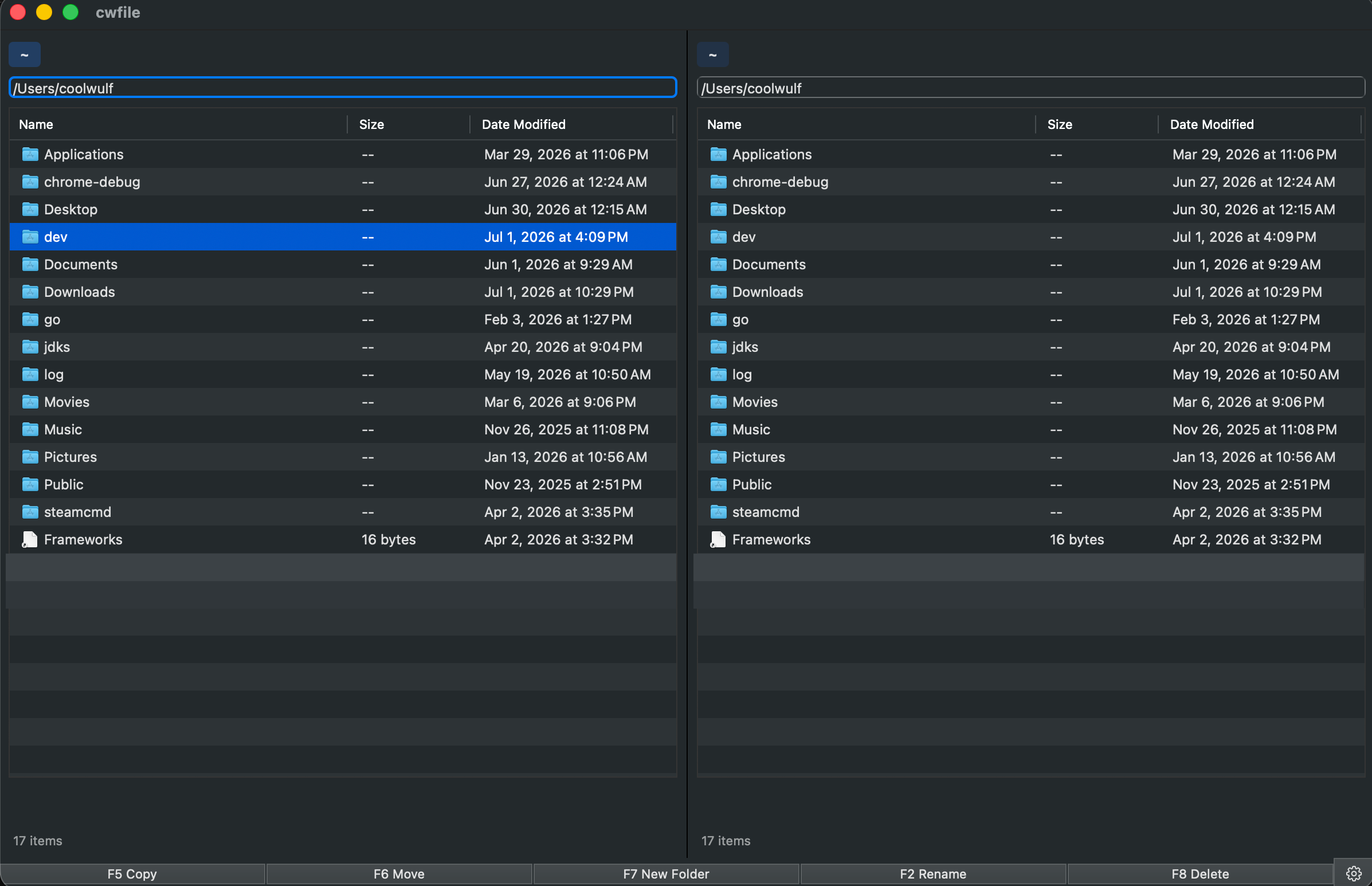
cwfile showing two file panels side by side with tabs, file-type icons, an accent highlight on the active panel, and the F-key function bar along the bottom
Two panels, tabs, file-type icons, and the classic F-key bar — the active panel is outlined in the accent colour.

What it is

cwfile is an orthodox file manager for macOS: two directory panels side by side, so every copy or move has an obvious source and destination. The layout, the F-key row along the bottom, and the muscle memory all come from Total Commander; the fuzzy “Go to Anything” palette comes from fman. It is a small, fast, native AppKit app.

Navigation is designed to never lose your place: going up a level re-selects the folder you just came out of, each tab remembers its own directory, and the ⌘P palette ranks folders you visit by frequency and recency — so your working directories are always two keystrokes away.

Features

Two panels, F-keys
Copy (F5) and move (F6) act from the active panel into the other one, exactly like Total Commander. New folder, rename, and delete-to-Trash sit on F7, F2, F8 — mirrored by the clickable bar along the bottom.
Go to Anything
P opens a palette that fuzzy-matches your previously visited folders (weighted by how often and how recently) plus every command with its shortcut. Type a fragment, hit Return, you’re there.
Tabs per panel
T opens a tab, W closes it, Tab cycles. Each side of the window keeps its own set of working directories.
Quick Look
Space previews the selection with the system Quick Look panel — images, PDFs, video, code — and the preview follows as you arrow through the list, just like Finder.
Type-to-filter
S drops a filter bar under the list: the panel narrows as you type, Return opens the first match, Esc puts everything back.
Vim bindings (optional)
Flip one switch in Settings (⌘,) and the list answers to h j k l, gg/G, and / to filter. Off by default; everything else keeps working.

Keyboard

The whole app is drivable without the mouse.

ReturnOpen folder / file
Up one level (re-selects the folder you left)
TabSwitch panel
F5 / F6Copy / move to the other panel
F7 / F2 / F8New folder / rename / delete to Trash
PGo to Anything palette
T / WNew / close tab
TabCycle tabs in the active panel
SpaceQuick Look preview
SFilter the current panel
h j k lVim mode: parent / down / up / open
gg / G / /Vim mode: top / bottom / filter

Install & use

cwfile runs natively on Apple Silicon and the whole installer is under 1 MB.

⤓  Download cwfile-1.0.dmg
macOS 14+ · Apple Silicon · 0.9 MB
Open the DMG and drag cwfile.app into Applications. First launch: right-click the app and choose Open (the DMG is signed but not notarised by Apple yet, so Gatekeeper asks once).